
Test terminal applications
Test the program a user runs
Section titled “Test the program a user runs”npm install --save-dev termwrightimport { fileURLToPath } from 'node:url';import { expect, test } from 'termwright/test';
const program = fileURLToPath(new URL('../app.js', import.meta.url));
test('approves a command', async ({ terminal }) => { const app = await terminal.launch({ command: [process.execPath, program] });
await app.waitForText('Permission required'); await app.press('Enter');
await expect(app).toHaveText('running: ls -la');});Termwright runs the command under a real pseudoterminal and reconstructs its
screen instead of treating stdout as a string. The program receives terminal
input, resize events, and signals as it would when run by a user.
The test above works with any terminal program. A supported framework integration can also expose controls by role or label. Visibility and pointer support vary by framework.
What a failure looks like
Section titled “What a failure looks like”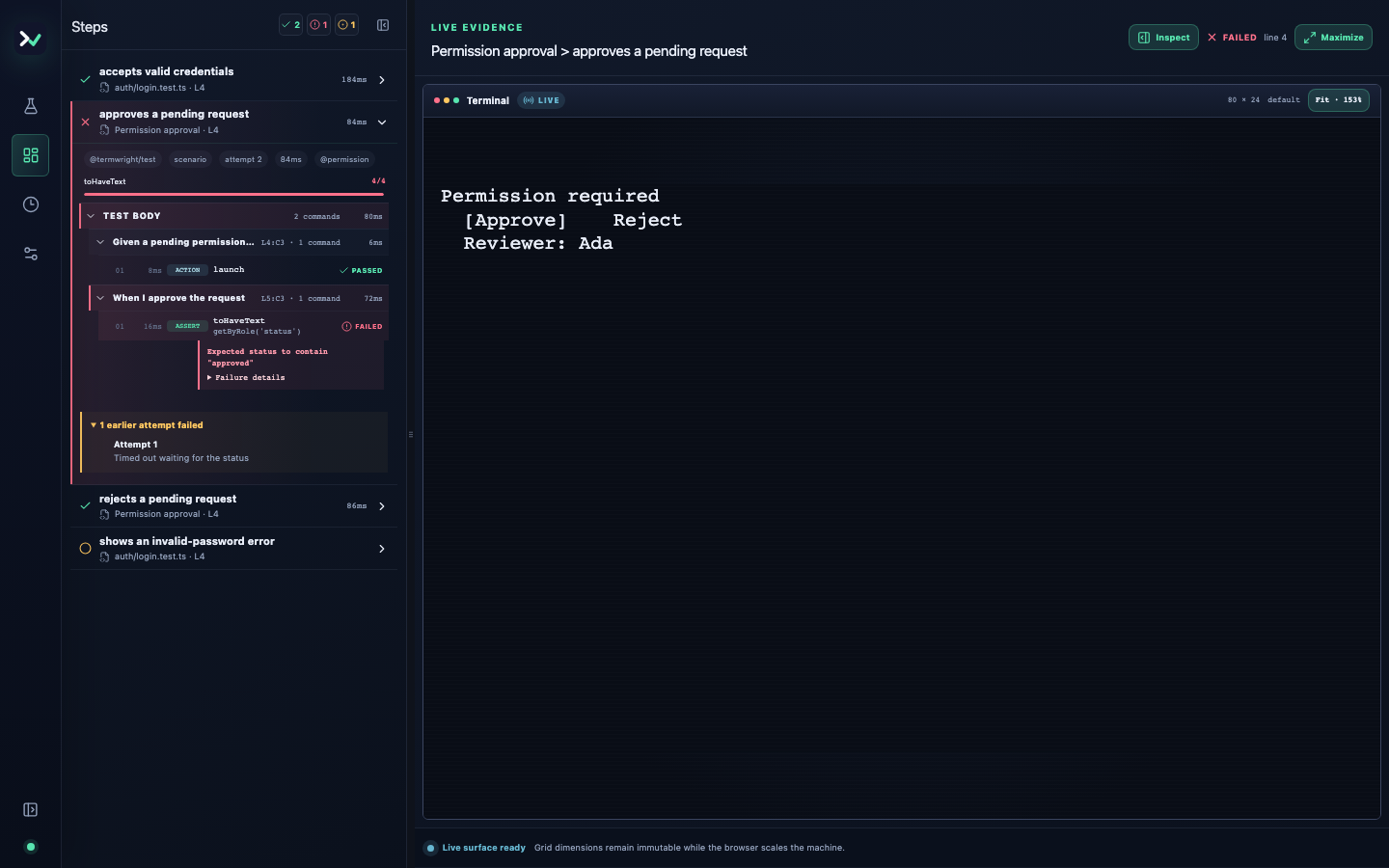
Failed tests retain a replayable trace by default. Run npx termwright ui while
writing tests, or open a trace downloaded from CI:
npx termwright ui --trace path/to/test.twtraceChoose the right level
Section titled “Choose the right level”| What you need to test | Use |
|---|---|
| Text, cells, keyboard input, resize, or process exit | The built-in black-box terminal API |
| Roles, labels, state, or semantic snapshots | A supported framework integration |
| Click controls by locator | An integration whose compatibility table lists pointer support |
| A pure function or component state with no terminal behavior | Your normal unit-test tools |
Termwright does not infer a button from decorated text or guess a pointer target. If the integration cannot report that information, use the screen-level API or test the behavior at another layer.
Start here
Section titled “Start here”- Install Termwright and run a test
- Learn the test workflow
- Choose stable locators
- Debug a failing test
See supported platforms and limitations before adding Termwright to CI.